
Before you start: If you want to update a campaign you do not coordinate (you are from a partner organisation) you must be added as a translator to be able to change the text (how to invite a translator).
Each piece of text in your campaign is called a string. You edit and translate strings on the campaign’s Texts tab. Changes there apply to everyone in the campaign, all partners. (To change text for one widget only, see customise widget text; for how the different text layers interact, see widget text layers.)
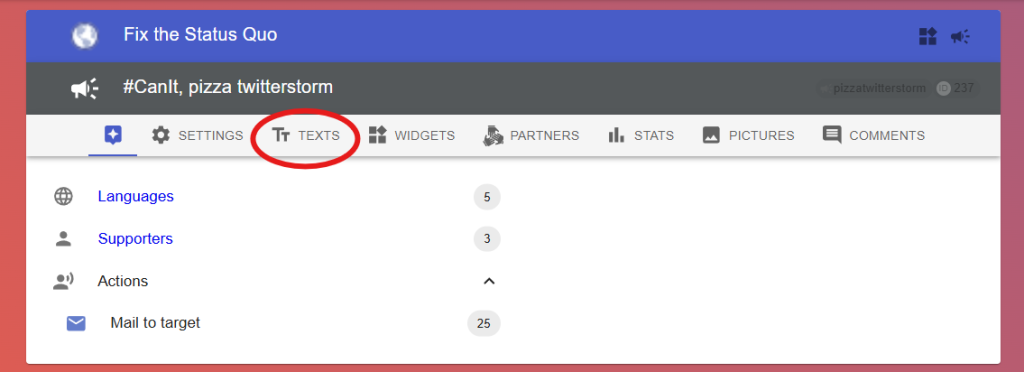
Steps
- On the Campaigns page, click ‘Texts’.
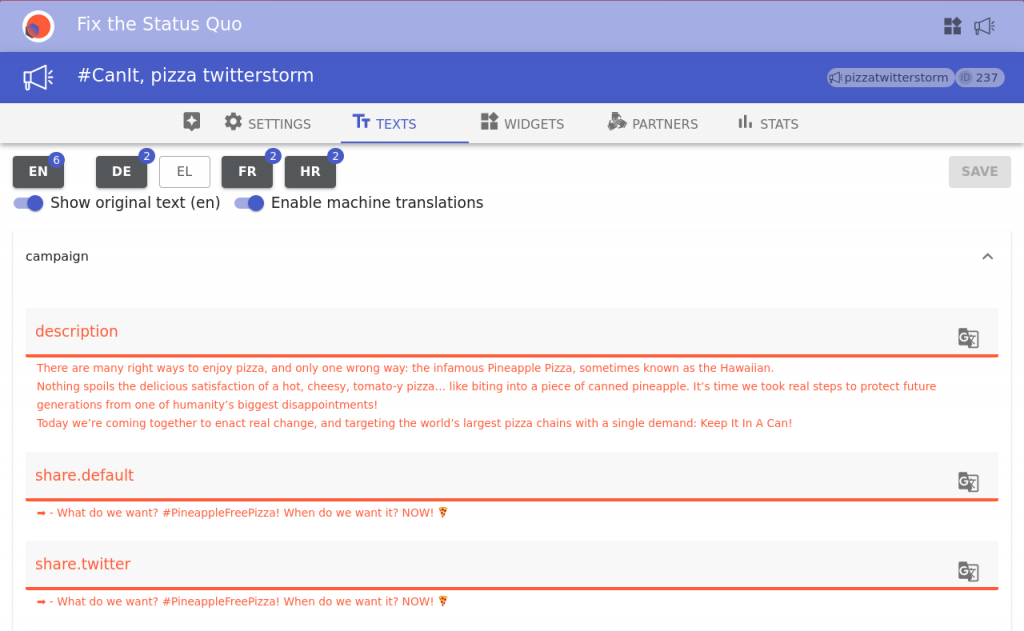
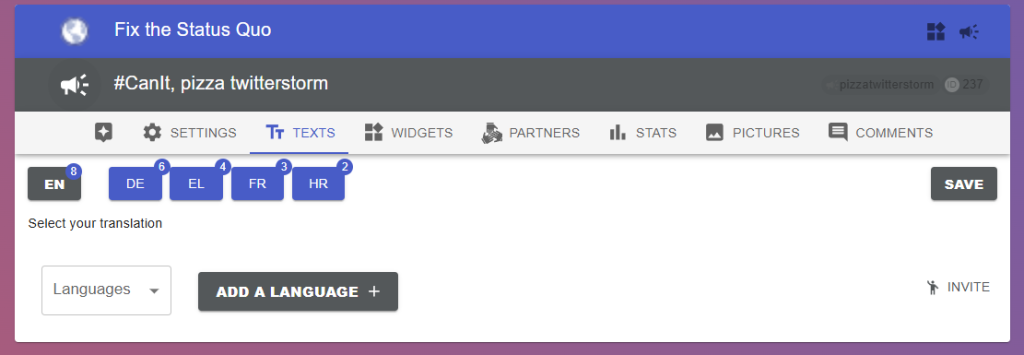
- The languages appear as tabs. The first on the left is the original text in the campaign’s primary language – the reference for all translations.
- Click the language you want to translate into. Empty fields show as red, so a fresh translation starts all red.
- Each field shows the string’s ‘key’ (a name tag) until you start typing, then it shrinks to a small header – use keys to refer to the same string across languages.
- The original text is shown underneath each field (‘Show original text’ toggle). Each field also has an automated translation button if ‘Enable machine translations’ is on.
- Type your translation into each field.
- Press Save (this is the step people forget most often – nothing is kept until you save).
- Rebuild your widget to see the translation live – widgets only show new text once rebuilt.
Reading the bubbles
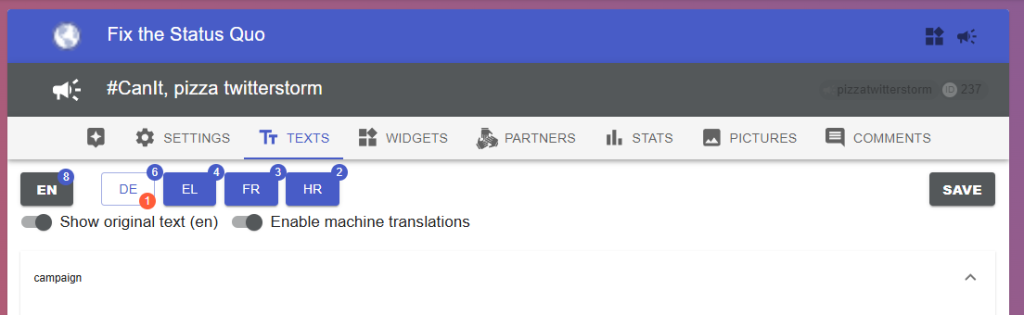
- Purple bubble: how many strings are present – aim to match the primary language’s count.
- Red bubble: you have unsaved changes.
Whatever you change, the widget only shows it after a rebuild.
Troubleshooting: missing a string?
- Not in the Dashboard set? Contact us to add it.
- A common string, shared across all users’ widgets? This can only be changed via Weblate, and only for genuine corrections.
- Just want custom wording for your own widgets? See customise widget text.
Depending on campaign-level settings, some customisation may not be possible. If you think something should be changeable, let us know.