
Thank you for being onboard the EP2024 project! We would like to share this mail-to-target guide with you. We hope it helps you set up and run an effective campaign. Our team will be happy to guide you through the process but before you get in touch with them, please go through the below material.
Proca dashboard allows you to edit the text of your messages, customise the mail-to-target form itself, add various language versions and a lot more. This is where the magic happens!
In this part of the guide we focus exclusively on the mail-to-target feature. If your organisation is not organising a mail-to-target action, please feel free to ignore this!
Further in this guide we refer to the mail-to-target as “MTT”.
Please note that for the purposes of Proca, the MTT action and the pledge are treated as separate “campaigns”.
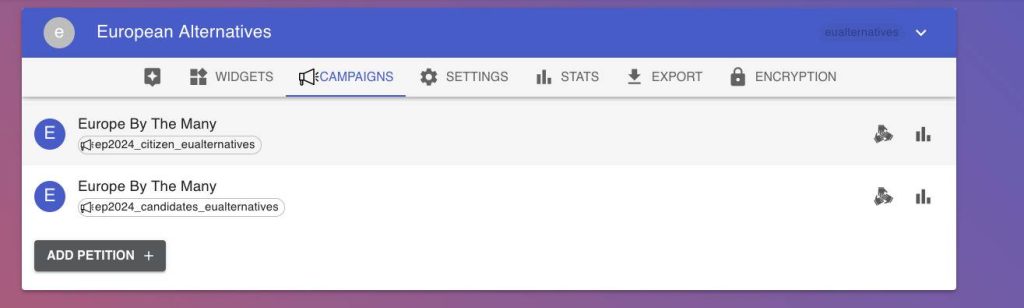
Most of you will have two campaigns listed on the dashboard (more, if your organisation has used Proca in the past):
- One is the campaign for citizens (MTT), its name starts with “ep2024_citizen” followed by the name of your campaign or organisation.
- The second one is for candidates (pledge), its name starts with “ep2024_candidates” followed by the name of your campaign or organisation.
(See screenshot below)
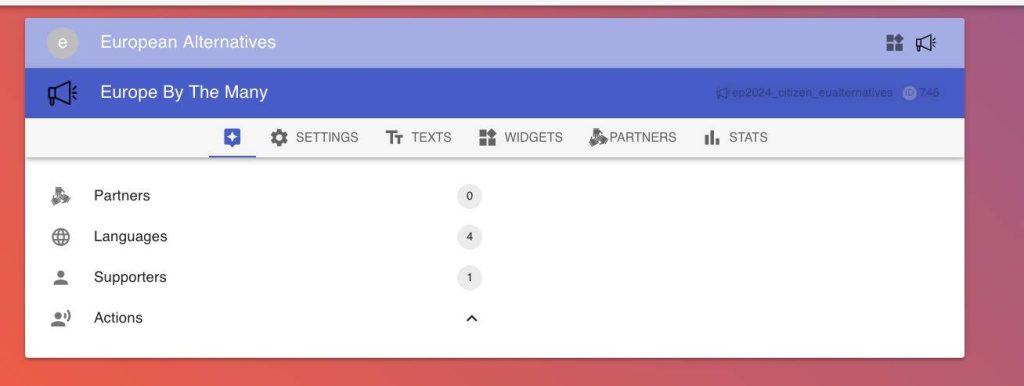
In order to edit your MTT you need to click on your “ep2024_citizen” campaign. You will see the landing page for the MTT widget/ campaign, like the one on the screenshot below.
Widgets -general
Please have a look at the video below.
Every language version of the MTT widget is listed separately. They are, in principle, separate forms. Most of you will start with an English widget.
When you click on the widget, you will first see a demo of your widget. When you click on “settings” you can change a few things, e.g. change the colour of the button at the bottom of the form or add a “floating widget button”.
When you click on “TEXTS” you can edit the default GDPR consent and sharing texts (most users leave this as is).
Whenever you change something on your widget, please click the save button (bottom left of the page).
Widgets – Adding a new language version
The video below demonstrates how to add a new language version of the widget.
The language of the widget will adjust to the location of the sender and will default to English if the widget has not been set up in the sender’s language. So, for example, if a Danish supporter is sending an e-mail to a Danish candidate, the supporter will see the widget in Danish if you have set up a Danish version of the widget. If you do not set it up, they will see the English version of the widget.
Widgets – testing
Please have a look at the below video to see how you can get a test preview of your widget. Please note that if you have just edited the text of the MTT (more on that below) the changes will not be “live” until you let us know and we rebuild the snowflake engine for you (more on that below)
Text – Editing the e-mail to the candidates
In order to edit the English text of the message sent to the candidates follow the steps in the video below.
Please remember to click save at the end (top right of the page).
Whenever you change anything in the text of the MTT you need to let us know by writing to support@fixthestatusquo.org so we can rebuild the so-called “snowflake engine” for you. More on the snowflake below.
Snowflake engine mixes various versions of the respective paragraphs of the message you prepared for the candidates. In order for it to work and result in the e-mails from your supporters’ landing in the mailboxes of the candidates, the snowflake engine needs to be “fed” a certain number of various versions of each paragraph of your message.
So, in order to “feed” the snowflake engine you need to prepare alternative versions of the same part of the message. It is up to you how many paragraphs your message will contain.
We recommend we put a clear call to action (link to your pledge) in the second or third part of your MTT message.
We kindly ask for at least eight versions of the first part of the e-mail and at least five versions of the other parts.
You can use AI (e.g. Chat GPT) to generate alternative wording for the respective parts of the message. Usually after discarding some bad results and improving the others, users end up with decent-sounding text.
Each version of each part must begin with a dash (-) and space.
Snowflake will randomly choose one version of each part and put together a letter from your supporter to the candidate. As a result, the messages sent by respective supporters will vary significantly. This makes MTTs more effective and maximises the chances of the e-mails landing in the desired mailboxes and not being flagged as spam. If you prepared four parts, the letter will have four paragraphs, if you set up five parts, the letter will have five paragraphs and so on.
The message sent by supporters should not read as if it was written by a policy officer. If, for example, in your mailing you are arguing against pesticides, do not list all the reasons against them in each version of the message. Rather, divide the arguments, so one version of a respective paragraph focuses on damage to pollinators, another version of the same paragraph focuses on water contamination, another on human health, another on animal health, another on pesticide resistance and so on.
We recommend and kindly ask for at least ten versions of the subject line of the e-mail (again, AI can be very helpful here).
Each version of the subject line must begin with dash (-) and space.
After the fields have been filled out, click save. Please remember to let us know at support@fixthestatusquo.org that you have edited the text of your MTT, only then the changes will go live (!).
Text of the e-mail to candidates – creating new language versions
The video below shows how you can quickly create various language versions of the MTT message using a built-in automatic translator. Ideally, you or your colleagues who speak the respective language would double-check the automated translation.
The language of the message to the candidate will adjust to the language of the addressee and will default to English if you do not set up the text in the addressee’s language.
The languages of the widget itself and the text of the MTT message do not necessarily need to correspond. For example, if a Danish version of the widget has not been set up but a Danish version of the text has been set up, a Danish user will use the widget in English but the language of the message will appear and be sent in Danish.
If you do not set up the message in the addressee’s language, they will be sent the English version of the message.